 DevSnap
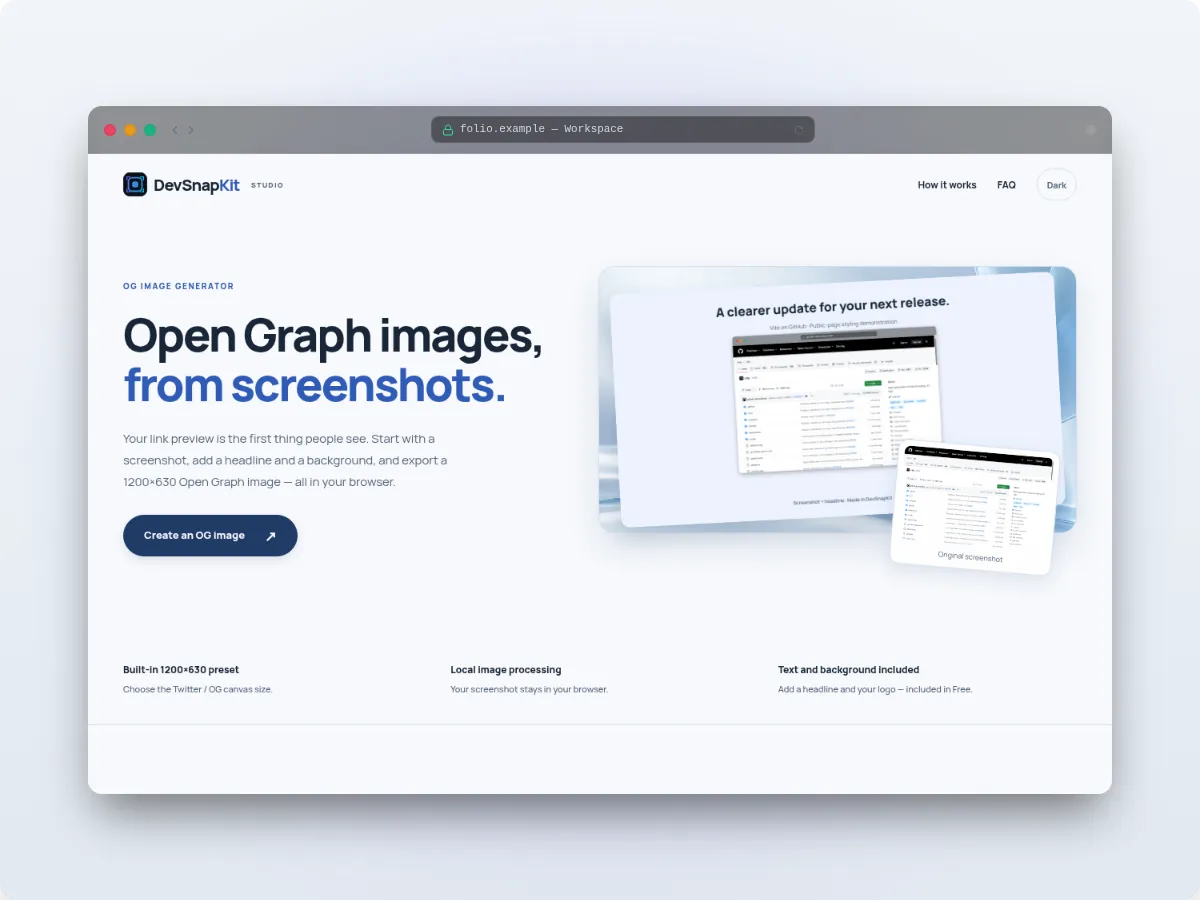
Frames to choose from
- Safari Browser — window buttons, back and forward arrows, and an address bar showing your window title.
- macOS Light / macOS Dark — a simple window with traffic-light buttons.
- Glass Window — a translucent frame that suits dark gradients.
- Borderless — no chrome at all, just rounded corners and a shadow.
Step by step
Take the screenshot without your own browser toolbar, so the frame is not doubled. Drop it into the studio, open Frame → Device styles, choose Safari Browser and type your domain into the window title field. Then pick a background, adjust padding, corner radius and shadow (None, Soft, Dramatic or 3D), and export.
For documentation, a light background and a front-flat angle look tidy. For a social post, use the Twitter/OG preset and a bold gradient. If you want a device rather than a window, try the MacBook mockup.
Why use a browser frame
A browser frame adds context without stealing attention: viewers immediately understand they are looking at a website, and the window edge separates your page from the post or slide around it. It is the usual choice for SaaS dashboards, documentation screenshots, blog post headers and portfolio pieces. Keep the window title short and real — your domain or the page name — because people do read it.