A complementary background.
Choose a studio palette or customize the canvas behind your screenshot.
 DevSnapKitSTUDIO
SCREENSHOT BEAUTIFIER
Add backgrounds, frames, and shadows. Make a polished visual for your next launch, update, or tutorial.
Beautify a screenshot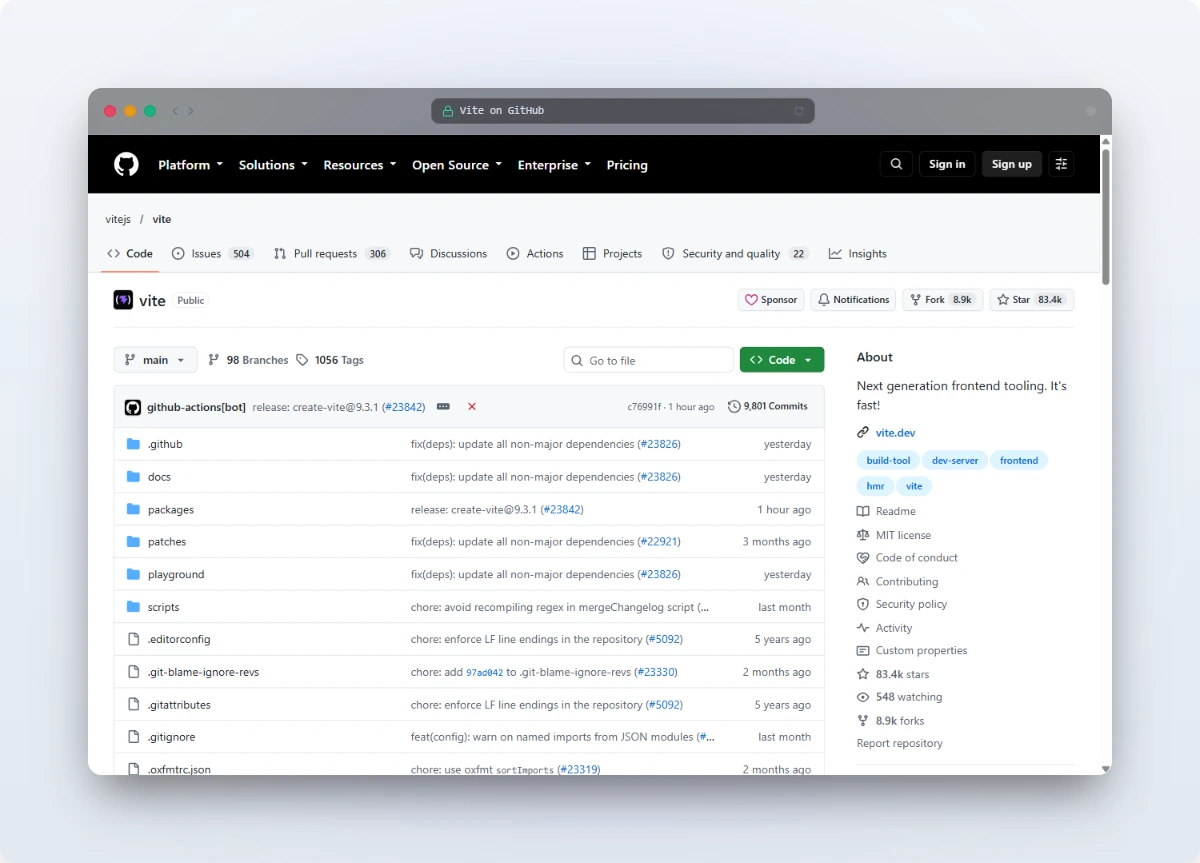
Local image processingYour screenshot stays in your browser.
Start with your own imageNo design file or blank canvas required.
Made for everyday updatesFrom a tutorial to your next launch.
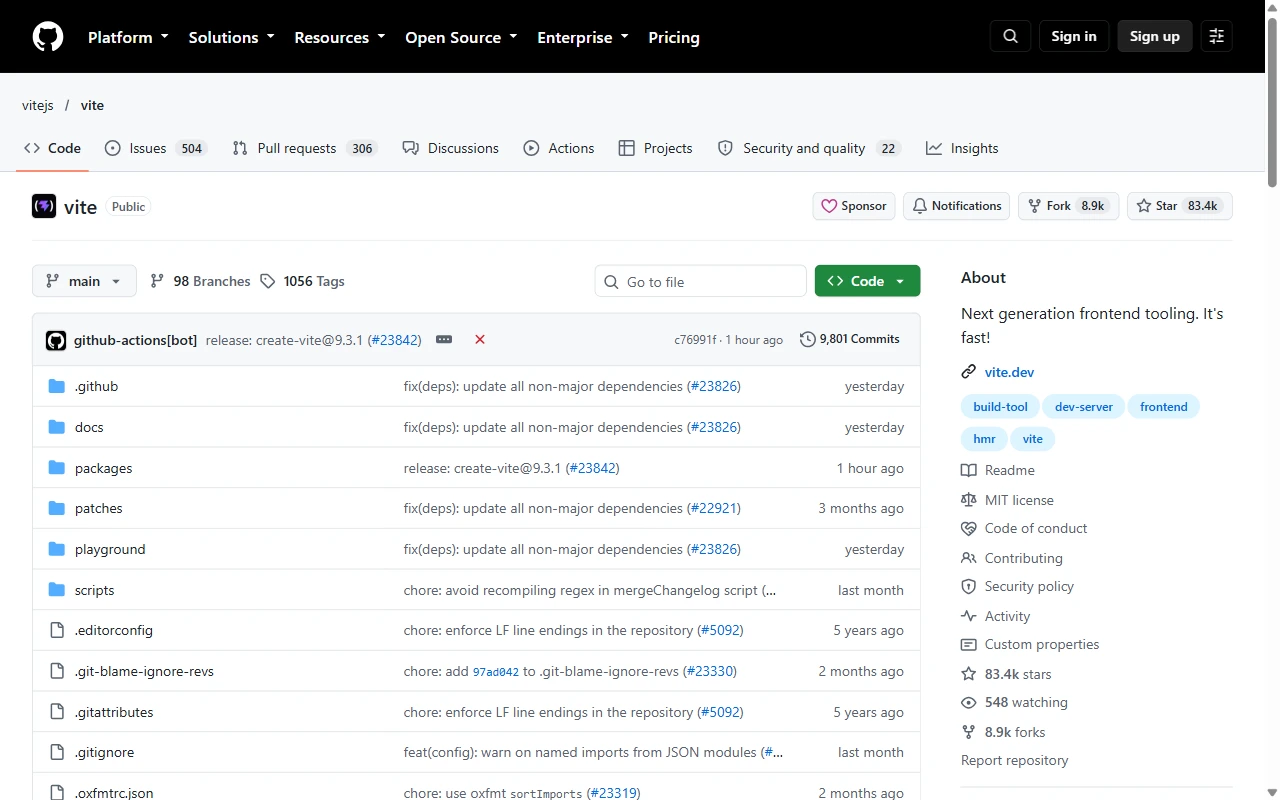
Same screenshot, with a background, breathing room, and a softer shadow. Move the slider to compare.
A real capture of Vite on GitHub, styled and exported using DevSnapKit. View original / View export.
Bring an image. Adjust the look. Export something you’re happy to share.
Import an existing screenshot, or try a built-in demo to explore the controls.
Pick a background and fine-tune padding, corners, shadows, and frames.
Choose your canvas proportions and download an image for your next post or update.
YOUR IMAGE, YOUR STYLE
Choose a studio palette or customize the canvas behind your screenshot.
Adjust padding, soften the corners, and tune the shadow around your image.
Choose a browser, desktop, or phone frame. Keep it borderless for a simpler composition.
Switch aspect ratios to compose a wide launch image, a square post, or another format. For link previews, create an Open Graph image.
A public GitHub repository capture with a Safari-style frame, silver background, and shadow.
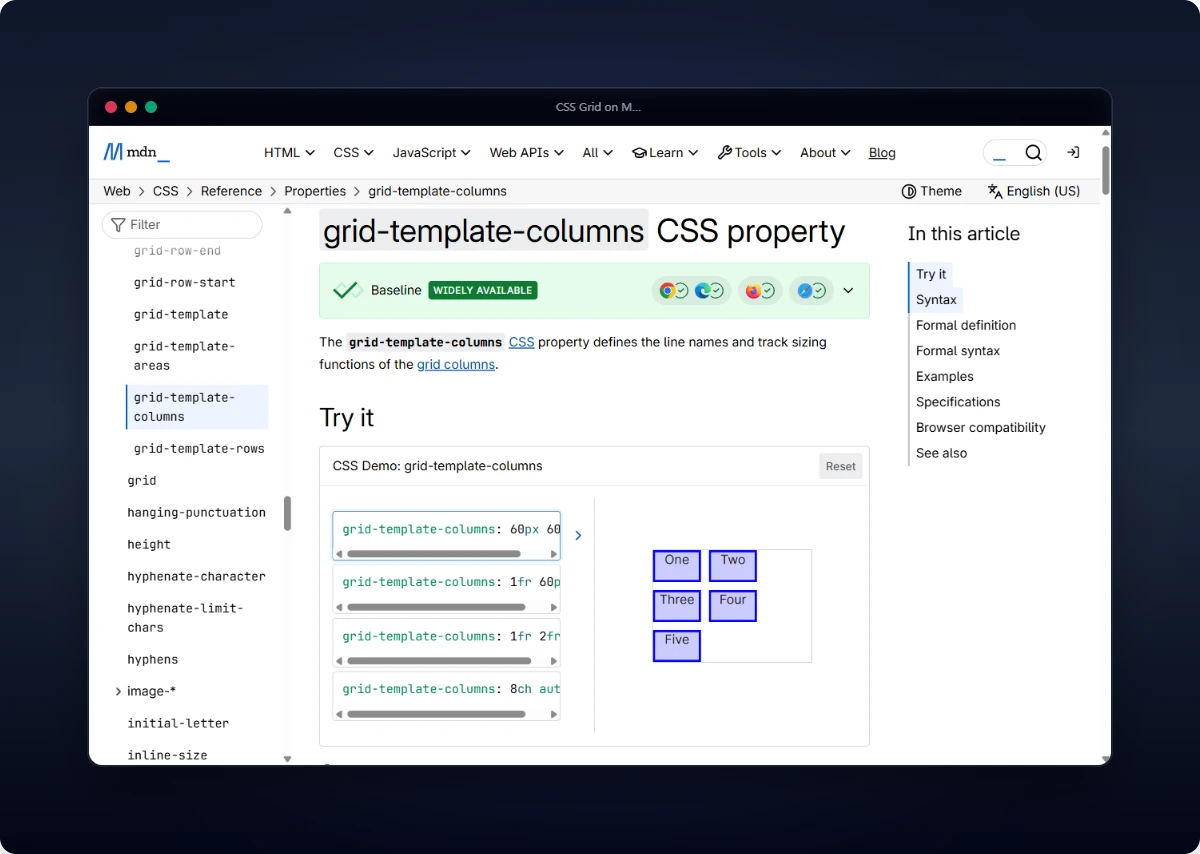
An MDN documentation capture with a dark window frame and slate background.
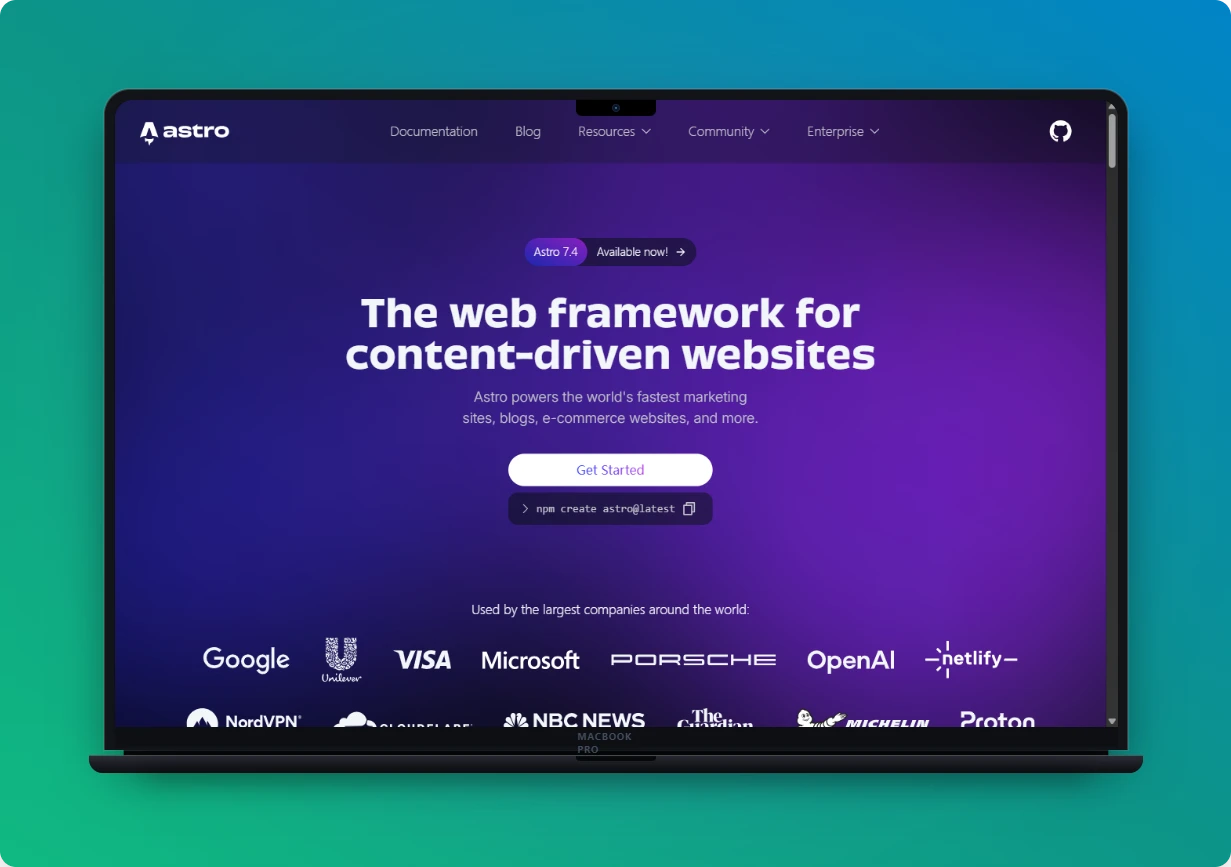
The Astro homepage capture in a MacBook frame with an emerald background.
Public-page styling demonstrations, not customer endorsements. Sources: Vite on GitHub, MDN, and Astro.
A screenshot beautifier adds presentation around an existing screenshot: a background, spacing, rounded corners, shadows, or a frame. DevSnapKit helps you arrange these elements in your browser.
Start with an image you have already captured. DevSnapKit styles and composes that image; it does not automatically capture a website from its URL.
Screenshot editing and image rendering happen locally in your browser. You do not need to upload your screenshot to a rendering server to style it.
No. Open the studio, choose an image, and use the canvas and frame controls. Built-in demo screenshots let you try the workflow before bringing your own image.
Yes. Adjust the canvas aspect ratio and compose a visual for your post, tutorial, or launch. Check the destination platform's current image specifications before publishing.
DevSnapKit offers an editor you can try and additional Pro options. Check the current Pro panel in the studio for available features and purchase terms before buying.
START WITH A SCREENSHOT