 DevSnap
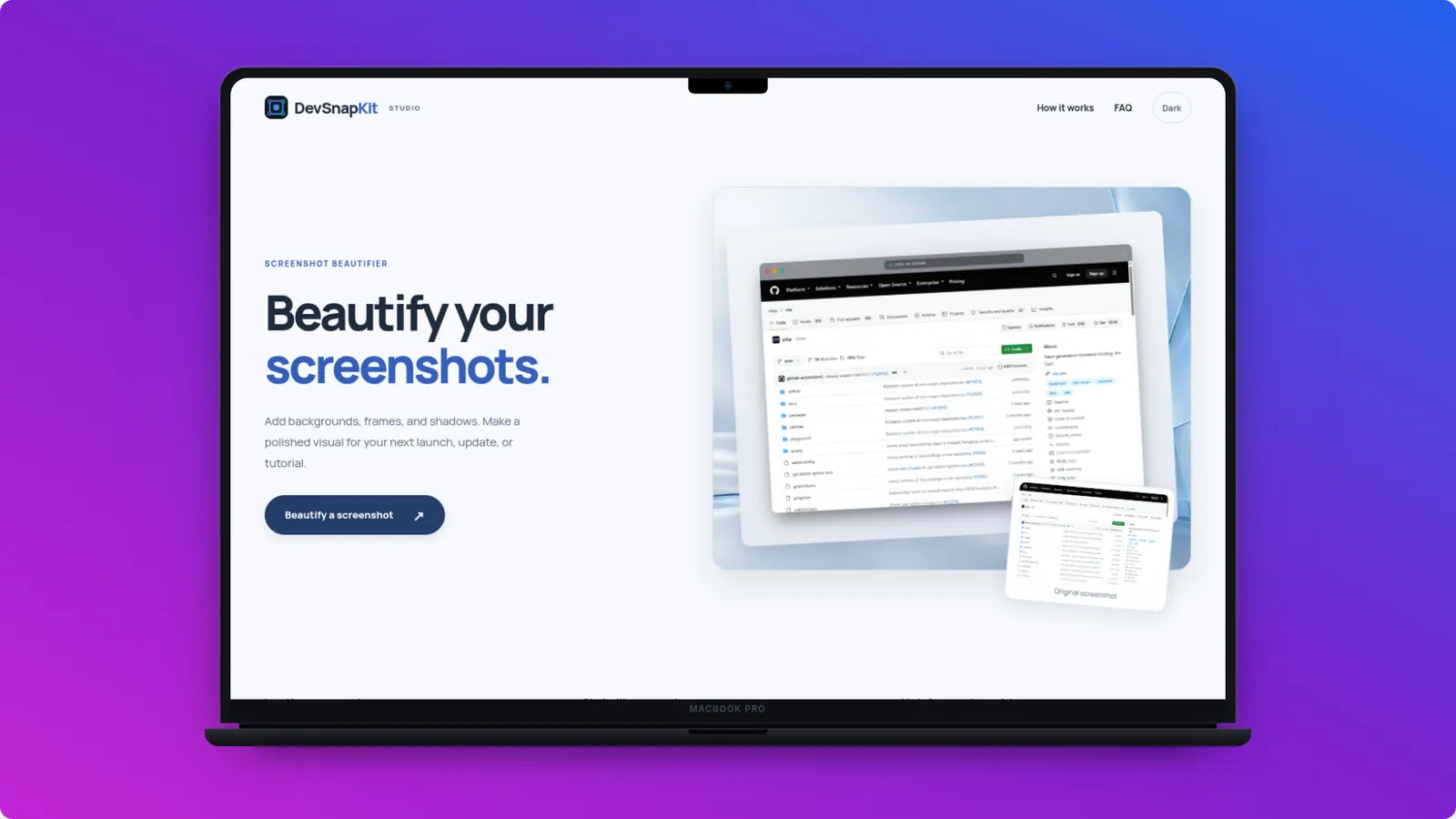
Make it in four steps
- Capture the page at a laptop-like size; 1280×800 or 1440×900 fills the screen without letterboxing.
- Open the studio, drop in the image and choose MacBook Pro in Frame → Device styles. For a desktop monitor look, choose Studio Display instead.
- Pick a background under Canvas: a gradient, a solid brand color, a subtle dot or grid pattern, or your own photo.
- Choose 16:9 for slides and video thumbnails, Twitter/OG for link previews, or a custom size, then download.
Getting a natural result
Keep the screenshot close to 16:10 so it fills the display. Use a front-flat angle for documentation and a 3D angle such as Floating Tilt or 3D Horizon for marketing. Darker gradients make a silver laptop pop; light backgrounds suit a dark-mode UI. If you also have a phone screenshot, Duo mode can place both side by side.
Prefer a lighter frame? A browser window mockup keeps attention on the page itself.
Common uses
- Landing page hero — show the product in context above the fold.
- Portfolio and case studies — present client sites consistently.
- Slides and pitch decks — a 16:9 export drops straight into a slide.
- YouTube thumbnails — the YouTube preset is 1280×720.
Everything is rendered locally in your browser, so unreleased designs and client work never leave your computer.