Two screenshots on one canvas.
Place two captures side by side when a single screen doesn't tell the story. Choose the images and their arrangement yourself.
 DevSnapKitSTUDIO
PRODUCT HUNT ASSETS
Give your launch a clear first image. Take screenshots of your product, add a headline that says what it does, and compose a visual for your gallery — without opening a design file.
Compose launch images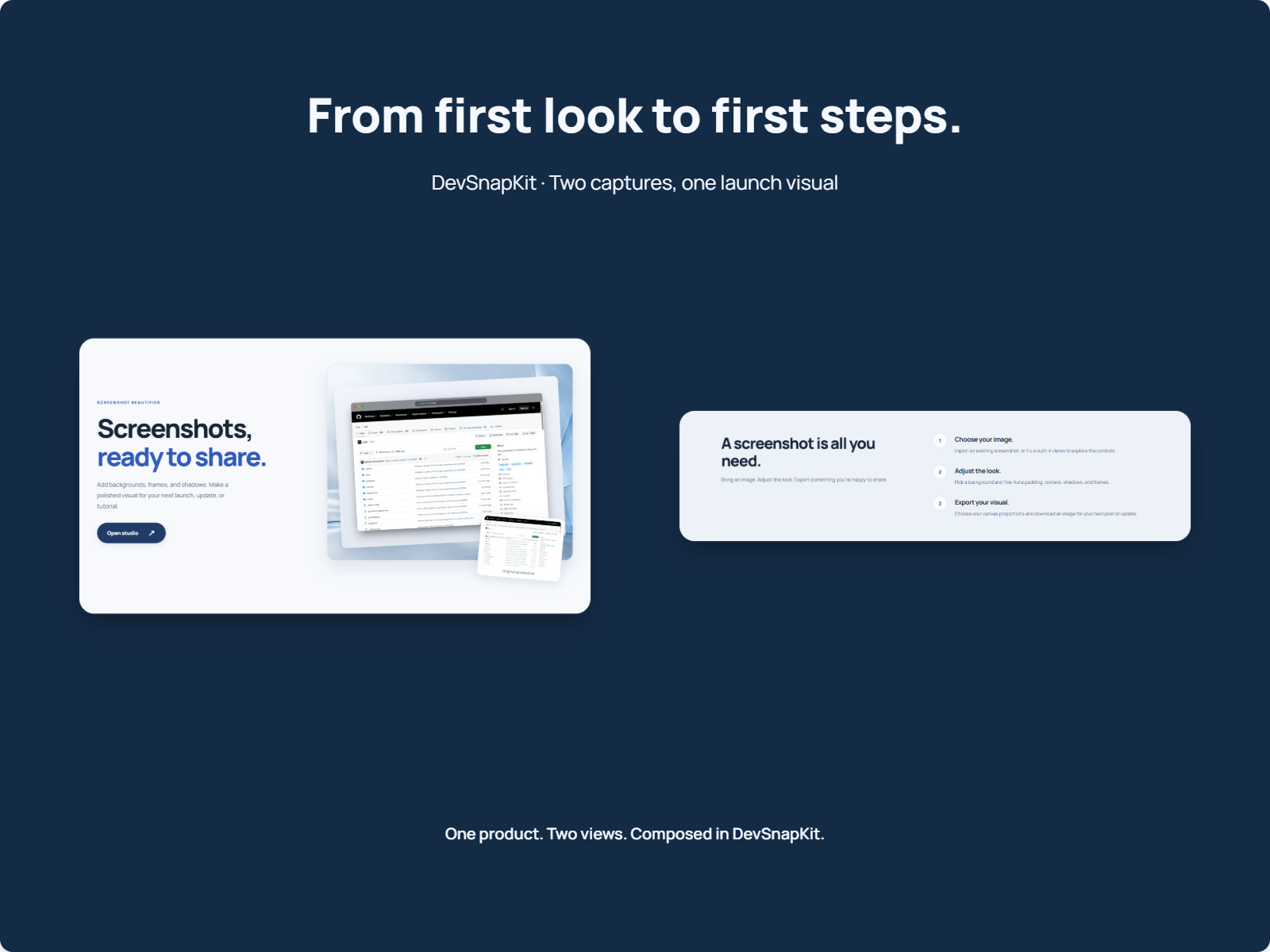
One composition, many sizesPro batch export makes size variants; review each layout.
Headlines you can actually editAdd text, then edit the words directly on the canvas.
Local image processingYour screenshots stay in the browser.
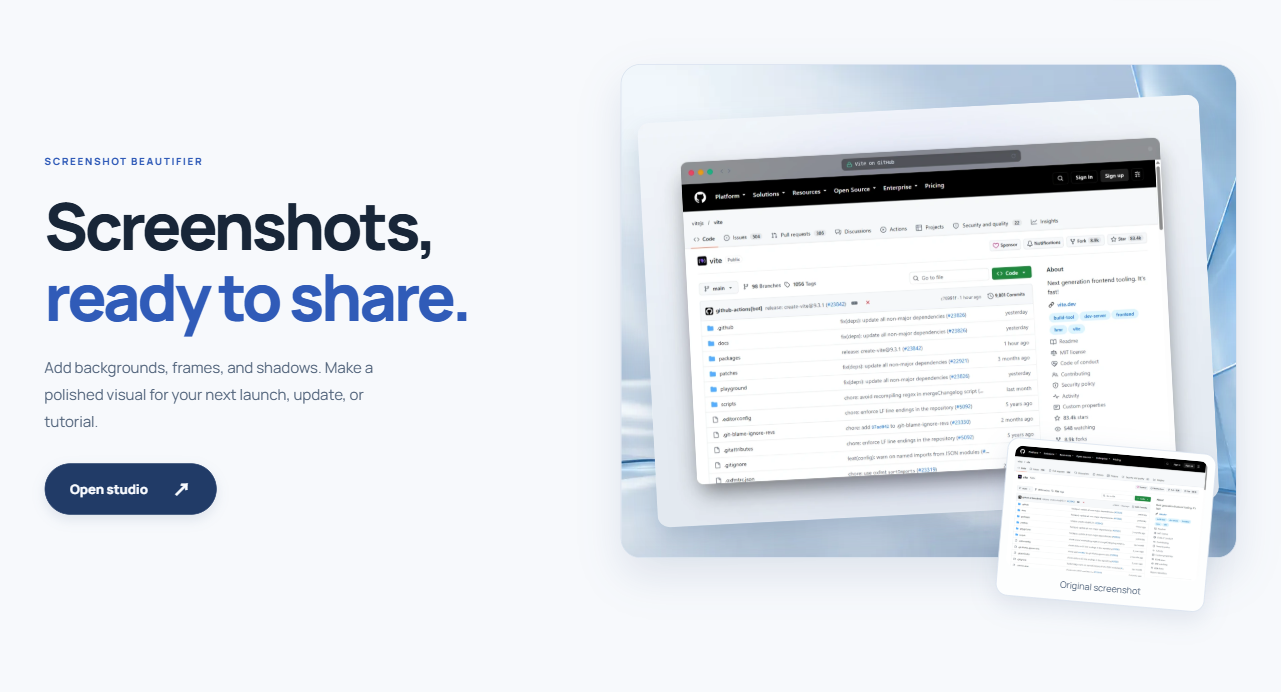
Our own screenshot beautifier page supplies both source captures for this example. We arranged them with a headline and exported one launch image. Slide to compare the source images and finished composition.
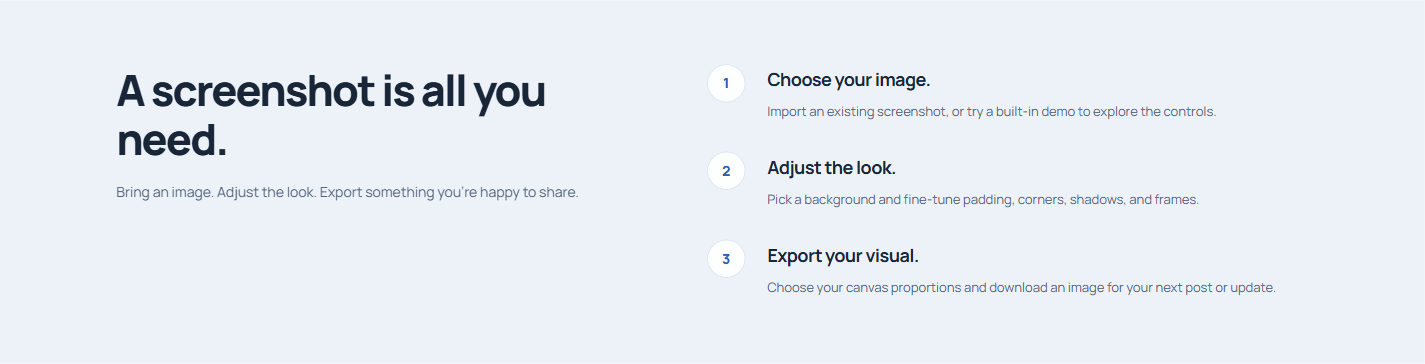
One real composition using two captures of our screenshot beautifier page, styled and exported using DevSnapKit at 1600×1200. This example size is not a statement of Product Hunt's current requirements. View original / View second original / View export. Public-page styling demonstrations, not customer endorsements.
A clear screenshot and a short headline give your launch gallery a useful starting point.
Take screenshots of the flows you want to show and import them. Place two captures together when the comparison helps explain the product.
Use Add text to create a headline. Edit existing text directly on the canvas, and compose each gallery slide with its own screenshots and message.
Check Product Hunt's current launch documentation before choosing a size. Pro batch export makes different sizes of the same composition; review each result and adjust the layout where needed.
A GALLERY WITH A POINT
Place two captures side by side when a single screen doesn't tell the story. Choose the images and their arrangement yourself.
Choose browser, desktop, or phone frames — or stay borderless when the interface should speak for itself. For individual visuals, style a screenshot with frames and backgrounds.
The free logo slot adds position, scale, and opacity controls. Reuse your chosen background and logo position as you compose the next image.
Generate several canvas sizes from one composition. Batch export does not create different gallery slides; size changes may need layout adjustments.
Possible scenarios to compose yourself, separate from the real example above.
SCENARIO 01
Lead with the main screen and one sentence explaining what someone can accomplish with your product.
SCENARIO 02
Arrange an input and an outcome together to show how a task moves through the product.
SCENARIO 03
Give one useful feature its own image and headline. Compose the next gallery slide separately with its own message.
Check Product Hunt's current launch documentation, then choose a matching canvas size in DevSnapKit. The 1600×1200 image on this page is our demonstration export, not a guarantee of the platform's current specification.
There is no Product Hunt template. The studio provides a canvas, frames, backgrounds, and text; you compose the image.
You can change the screenshot and text to compose each gallery image. Pro batch export produces different sizes of the same composition; it does not automatically generate different gallery slides. Review the size variants and adjust layouts as needed.
No. Use Add text to create a text box, then edit it directly on the canvas. You can also prepare your headlines elsewhere and paste them into the text box.
Reuse the same background and frame choices while composing each image. Logo placement is included in Free; you choose the position, scale, and opacity.
Pro includes premium templates, high-resolution export presets, batch export and premium gradient backgrounds. Single exports are available in Free. The final pixel dimensions are shown before export.
MAKE THE FIRST IMAGE CLEAR